

Scheduling Made Easy with SkySchedule
April 8, 2026
Scheduling Made Easy with SkySchedule
The Schedule View
The schedule gives you a live view of all your aircraft and available time slots in one place. You can toggle between a 15hr or 24hr time format, switch between a horizontal view (the default) or a vertical/list view, and everything is fully mobile optimized so it works just as well on your phone as it does on a desktop.
Live Weather (METAR)
If you navigate to Settings → Company and enter your airport's ICAO code, the schedule will start displaying live decoded METAR information right at the top. You'll be able to see:
- Temperature and dew point
- Wind speed and direction
- Visibility
- Pressure conditions
Click the arrow to expand the raw METAR data if you want the full unformatted report. It's a small setup step that makes a big operational difference when you're planning flights for the day.
Adding a Reservation
Creating a reservation is straightforward. Admins, instructors, and renter pilots can all add reservations. When creating one, you'll select:
- Activity type - Discovery Flight, Dual Flight, Solo Flight, or Maintenance
- Start and end time
- Instructor and student (or just a student for solo flights)
- Aircraft
- Any comments you'd like to include
Each activity type has its own color so the schedule stays easy to read at a glance - Discovery Flights are green, Dual Flights are blue, Solo Flights are yellow, and Maintenance is red. Once a reservation is created, it's visible to everyone within your flight school.
Note on Renter Pilots: If you've enabled the Allow Student to Create Reservations toggle on a student's profile, they become a renter pilot and gain the ability to add their own reservations to the schedule.
Reservation Details
Clicking on any reservation opens the detail view, where you can see the full flight summary, the people involved, and any comments that have been added by anyone in the flight school. From here you can also add the reservation to your preferred calendar - Google Calendar or Apple Calendar - which you can configure in your settings.
To make changes to a reservation, click Edit to update the times or other details. Note that the activity type and customer information can't be edited after the fact - if you need to change those, just delete the reservation and create a new one.
AI Dispatching
Below the reservation details is the AI Dispatching button. When you click this, our AI agent generates a full pre-flight debrief by looking at everything relevant to that flight in one shot:
- All aircraft documents, flagging anything that's expired
- Any open squawks, active maintenance statuses, or pending inspections
- Aircraft compliance - who has the required checkouts and who doesn't
- Any missing requirements based on what you've configured for that aircraft
It surfaces anything that needs attention before the flight goes out, so nothing gets missed in the rush of a busy day.
Starting Hobbs
Right next to the dispatch button is the Start Hobbs button. Before you get in the aircraft, tap this to record the starting Hobbs and Tach time automatically - no more photos of the gauges before every flight. When you go to complete the flight, that starting data is already there waiting for you.
You can also enable Auto Hobbs Rollover in your settings, which automatically carries the ending Hobbs and Tach time from one reservation over as the starting point for the next one on that aircraft.
Completing a Flight
The Complete Flight button is where everything comes together - this is one of the most important actions in SkySchedule and what really sets the platform apart.
When completing a flight, you'll enter:
- The route flown (airport identifiers)
- Number of landings
- Start and end Tach and Hobbs time
- A post-flight summary if you have that option enabled in Progress - instructors can tap the microphone and just speak naturally, and it'll capture their notes hands-free
Once a flight is marked complete, the platform takes that data and automatically updates everything across the board:
- Past Flights - The flight is logged and you can pull up the ADS-B and altitude data from that specific flight. Students and instructors can also export the flight directly to ForeFlight or Logten for their personal logbooks, making logging completely painless.
- Maintenance - Hobbs and Tach time are automatically updated on the aircraft.
- Billing - The flight is ready to be invoiced from the billing tab, with the time and aircraft rate already pulled in.
- Reports & Flight Logs - A flight log entry is automatically generated.
- Student Progress - The student's hours are updated and the flight appears in their progress history.
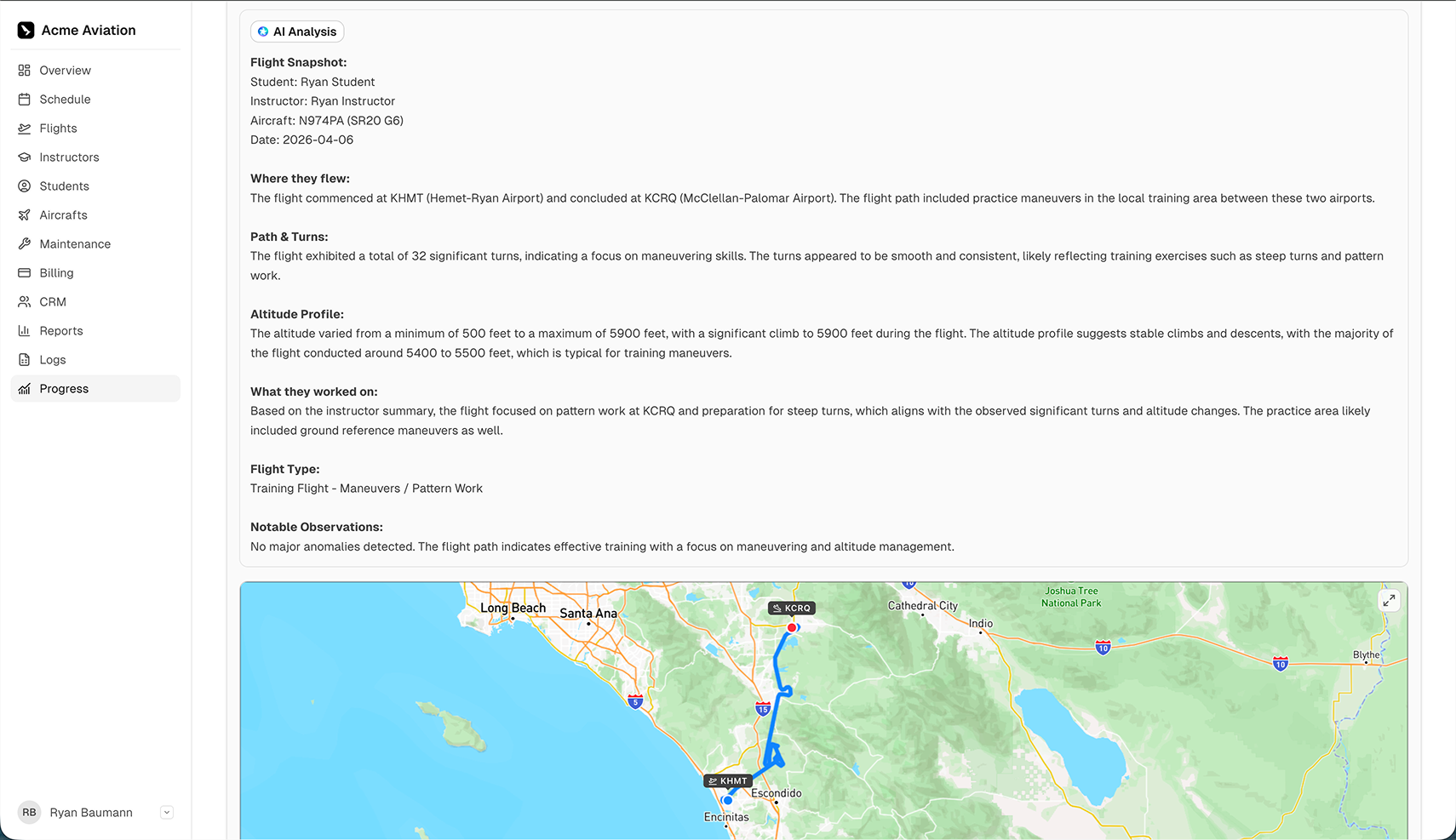
Inside of Progress, you can navigate to any student's past flights and see both the instructor's post-flight summary and an AI-generated analysis of the flight - breaking down what happened, what was covered, and how the student performed. It's a level of detail that used to take significant manual effort and now just happens automatically.
A Note for Instructors and Students
The quality of everything downstream - billing, logs, reports, progress tracking, ADS-B data - depends on flights being completed properly. Make it a habit to complete every flight before leaving the aircraft. It takes a minute and keeps everything accurate across the entire platform.
Schedule a Demo
Large Organization or Enterprise?
Multi-campus and multi-location operations, or larger schools that need custom enterprise systems. Let's build together. .